
Getting started with Facebook and Instagram Shops
- Make sure your business is eligible for a shop.
- To seamlessly connect the products in your online store to Facebook and Instagram, and automatically submit the most up-to-date product data to your Shop daily, you need a product feed.
To build a feed in GoDataFeed, add a new feed template in GoDataFeed and select our Facebook and Instagram Shops feed. Our feeds are auto-mapped for stores with Wix Imports. There may be additional changes you wish to make. You can request a feed setup or follow the steps below to set up your feed.
- Create your shop, customize collections, and design it in Commerce Manager.
What is the Meta Business Extension?
The Meta Business Extension (MBE) is a Meta-owned interface that simplifies integration with Meta. Connecting MBE in GoDataFeed allows easy feed submission to Commerce Manager and syncing orders from Facebook and Instagram Shops back to your platform.
How to connect the MBE in your Facebook and Instagram Shops feed
Follow these steps to connect the MBE in your Facebook feed:
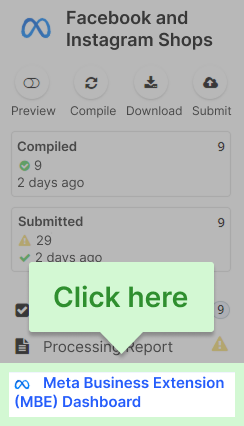
1. Click "Meta Business Extension (MBE) Dashboard" in your feed
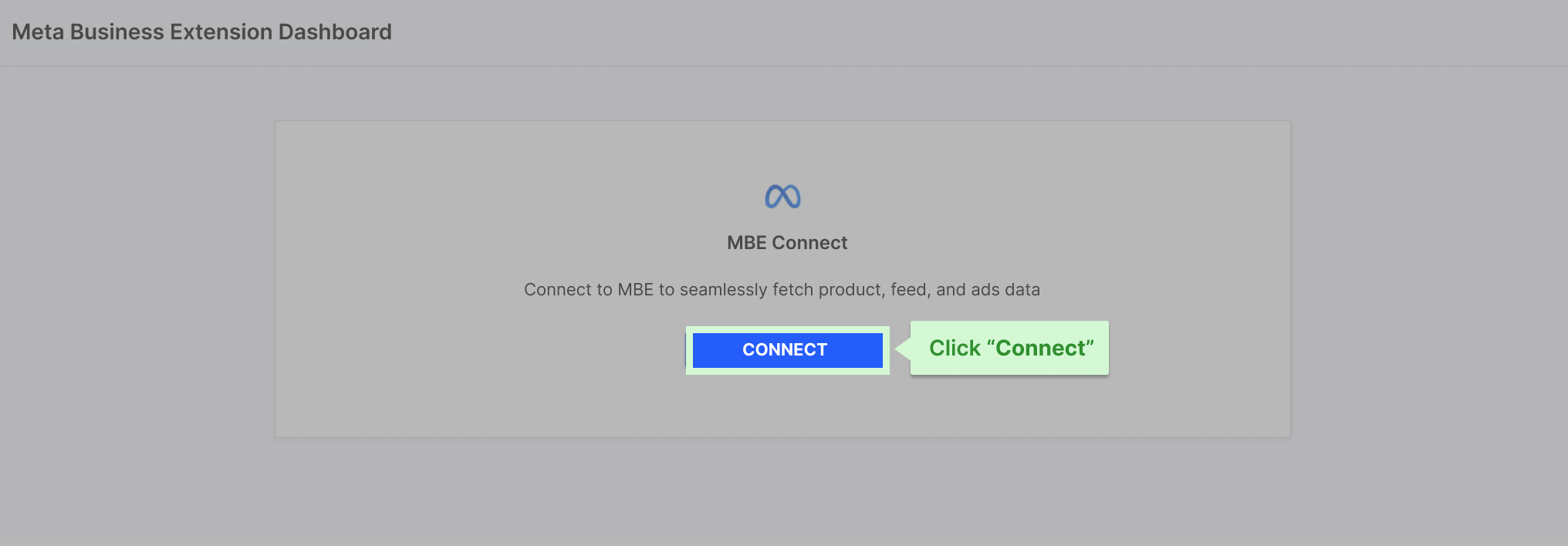
2. Click the blue "Connect" button
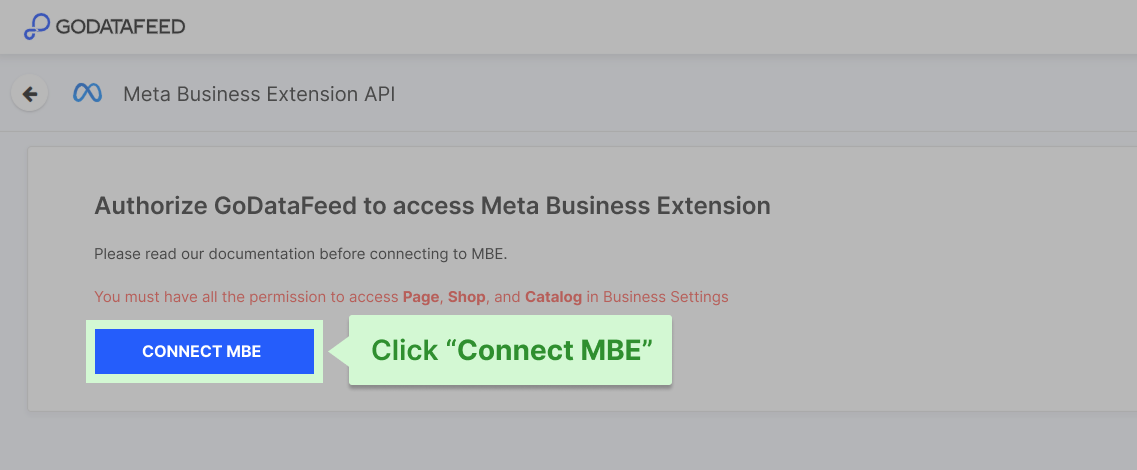
3. Click "Connect MBE" and log in to Facebook if prompted
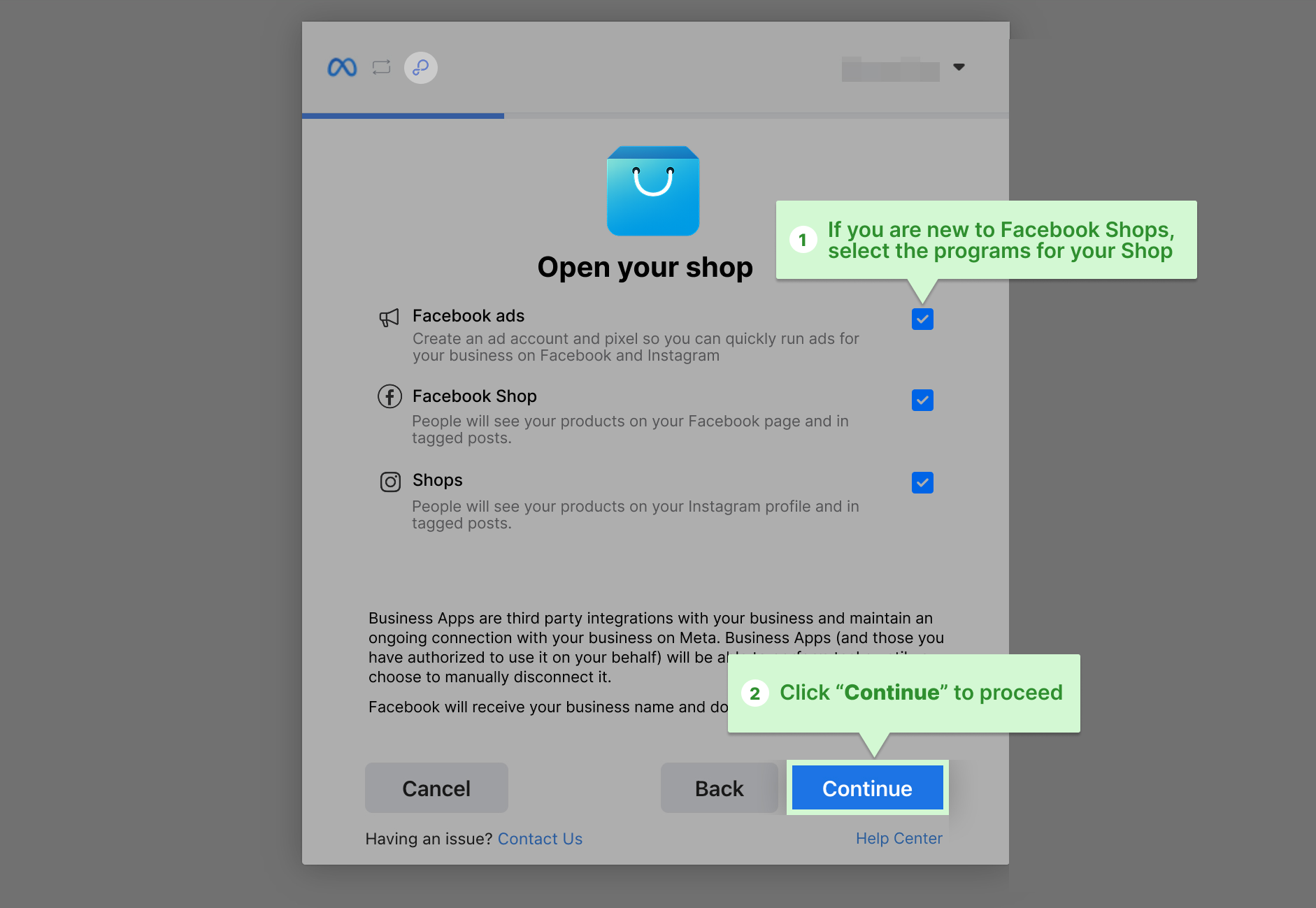
4. Select/unselect assets and click "Continue"
5. Login to Facebook
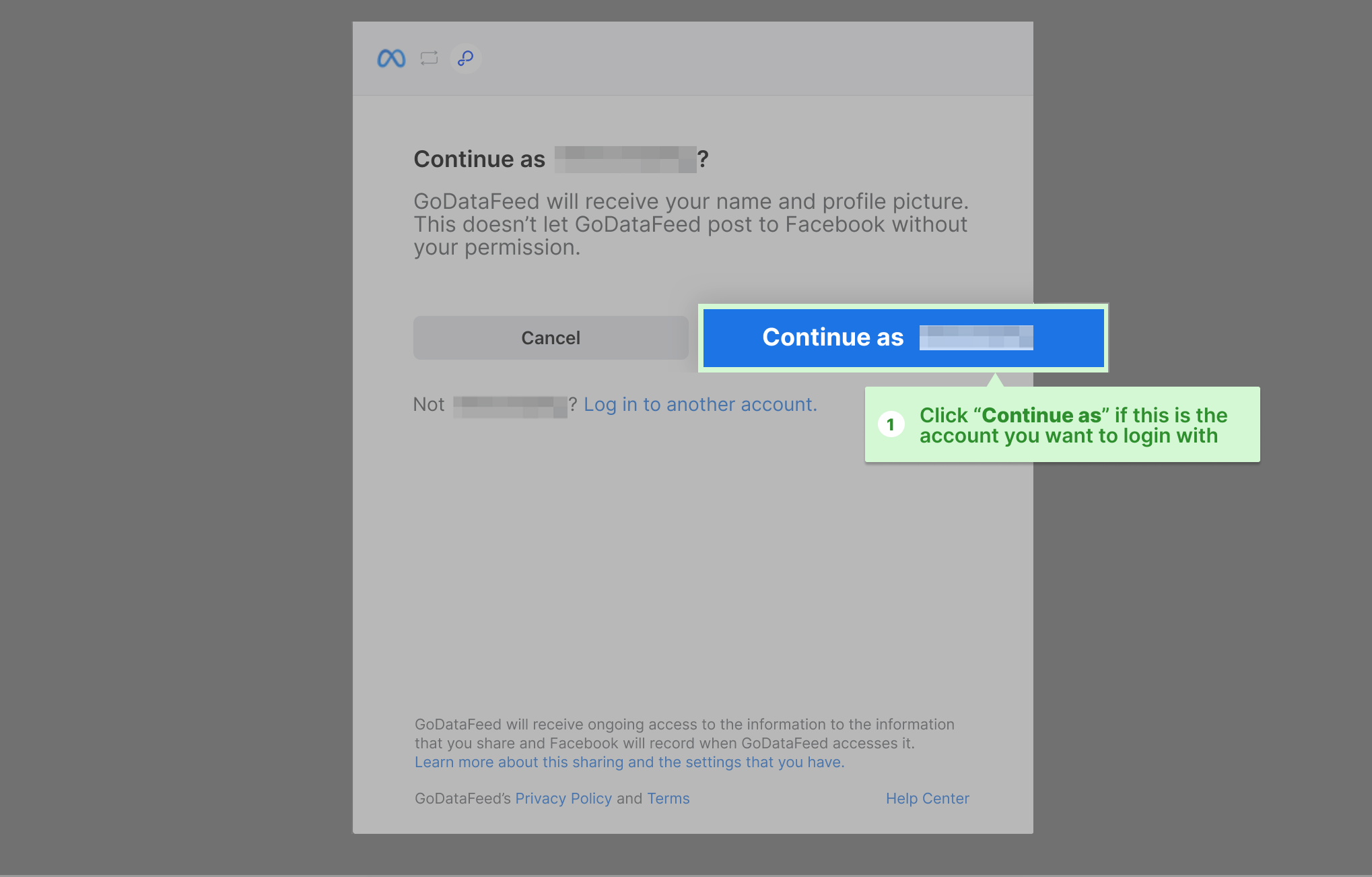
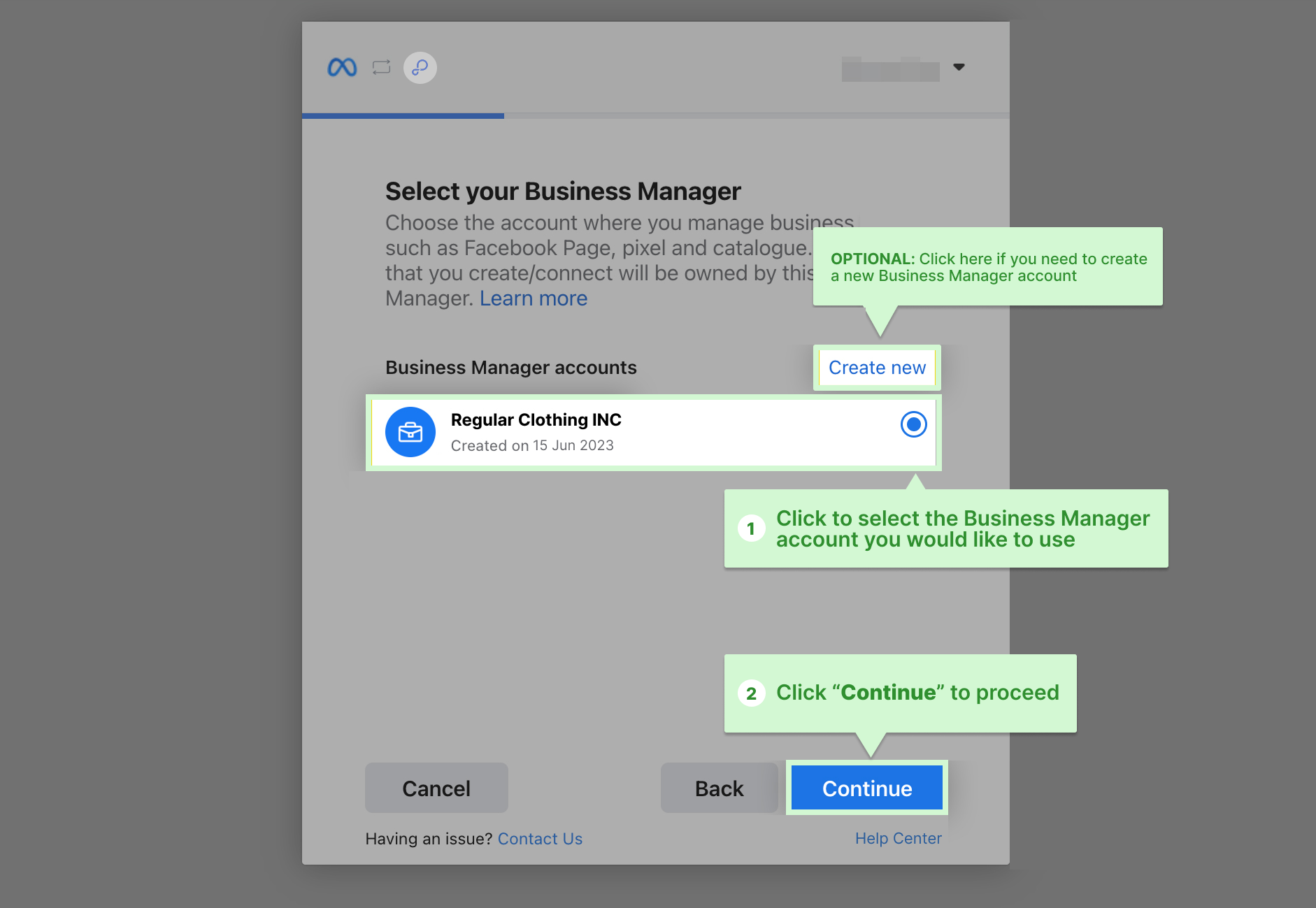
6. Choose your Business Manager account and click "Continue"
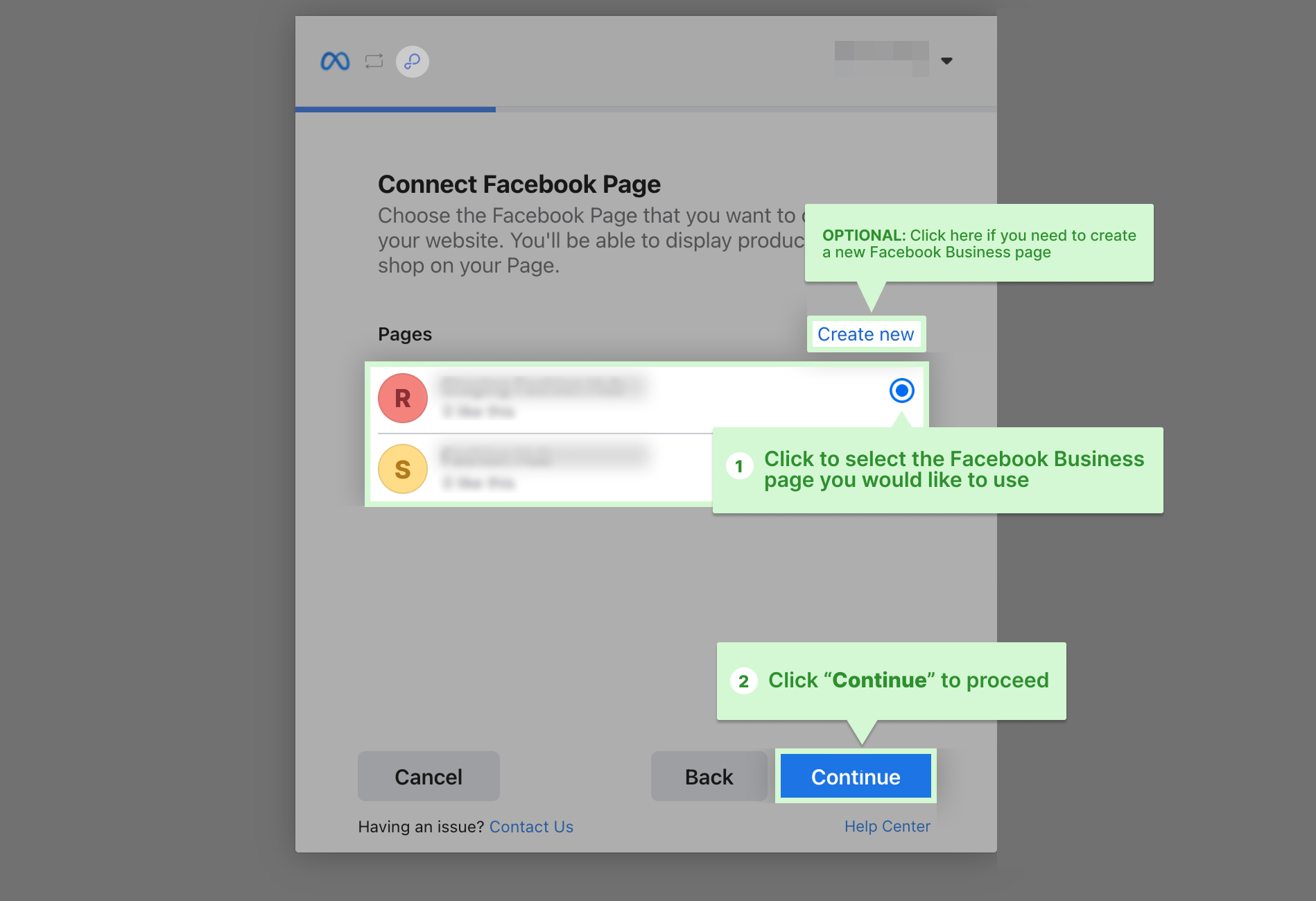
7. Select a Facebook Page or create one, then click "Continue"
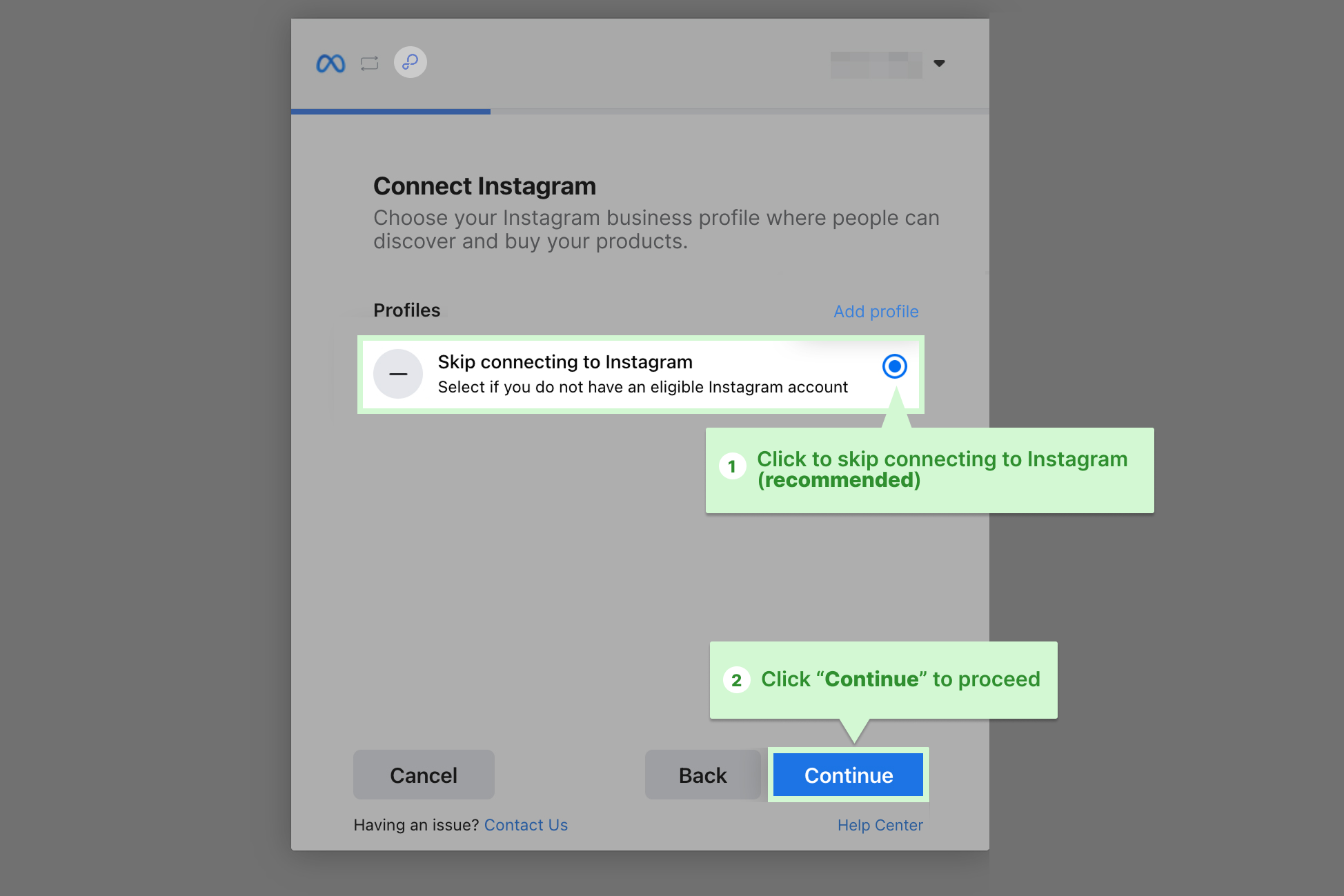
8. Connect an Instagram account or create a new one and click "Continue"
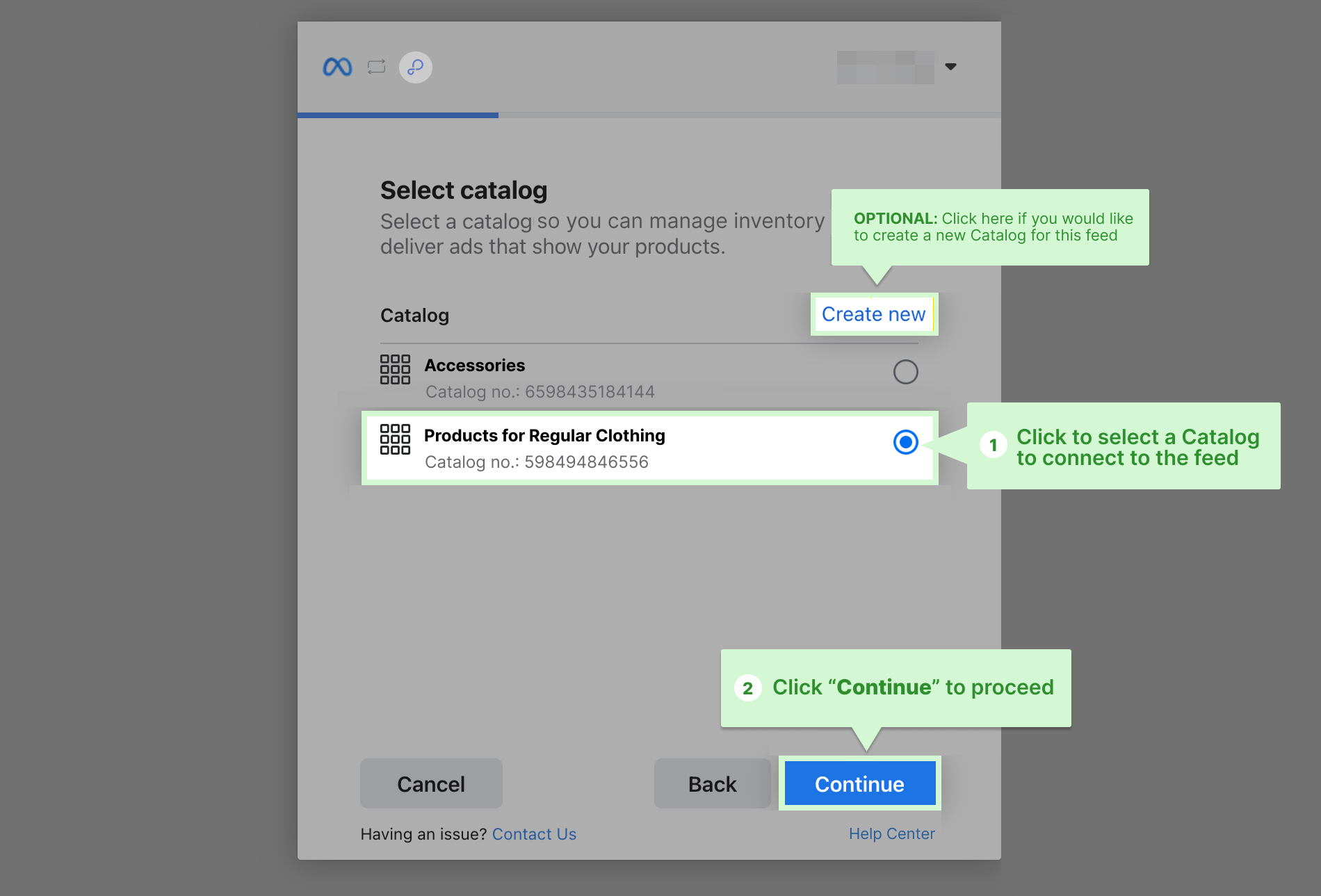
9. Select or create a Catalog and click "Continue"
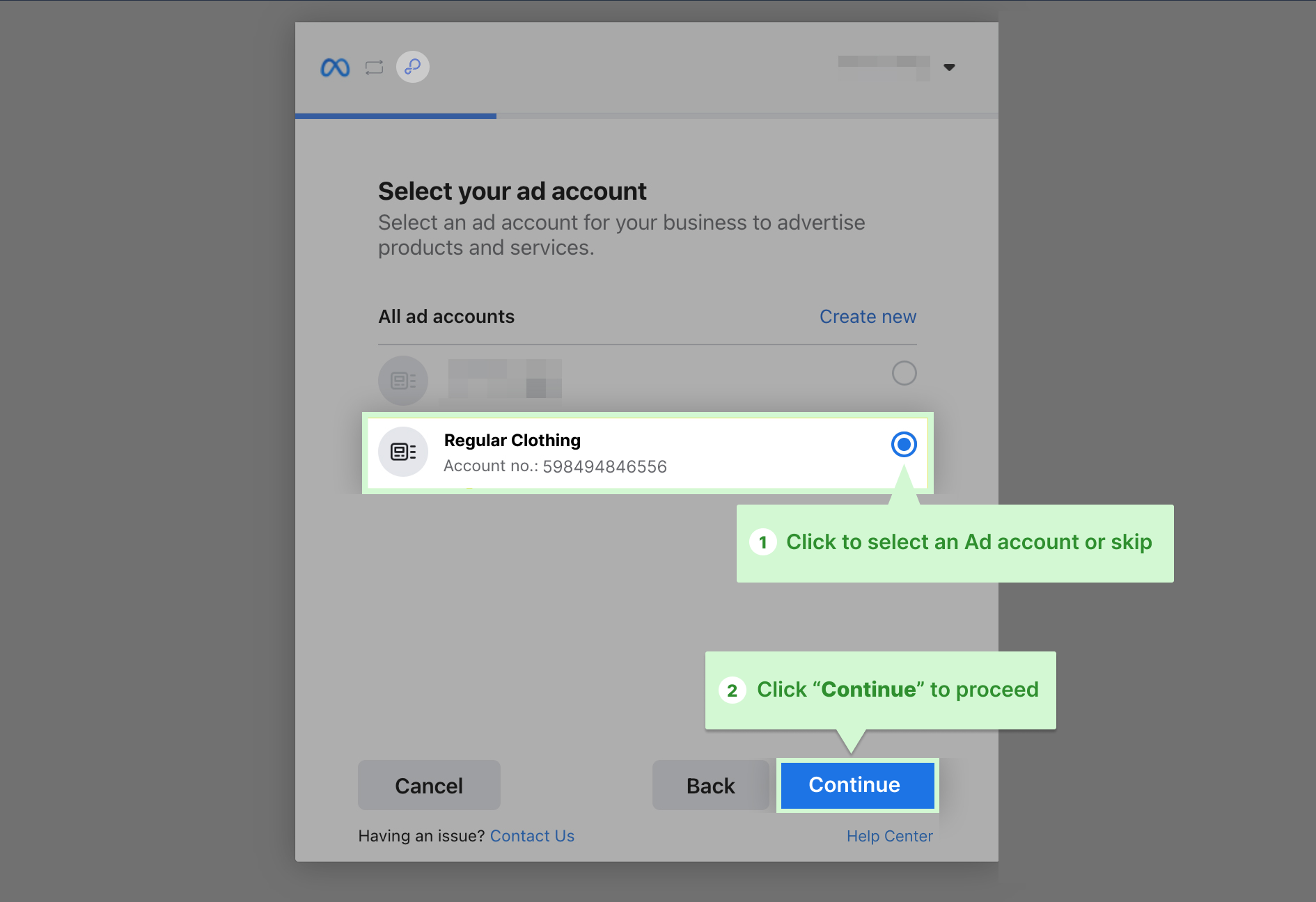
10. Select an ad account or skip, then click "Continue"
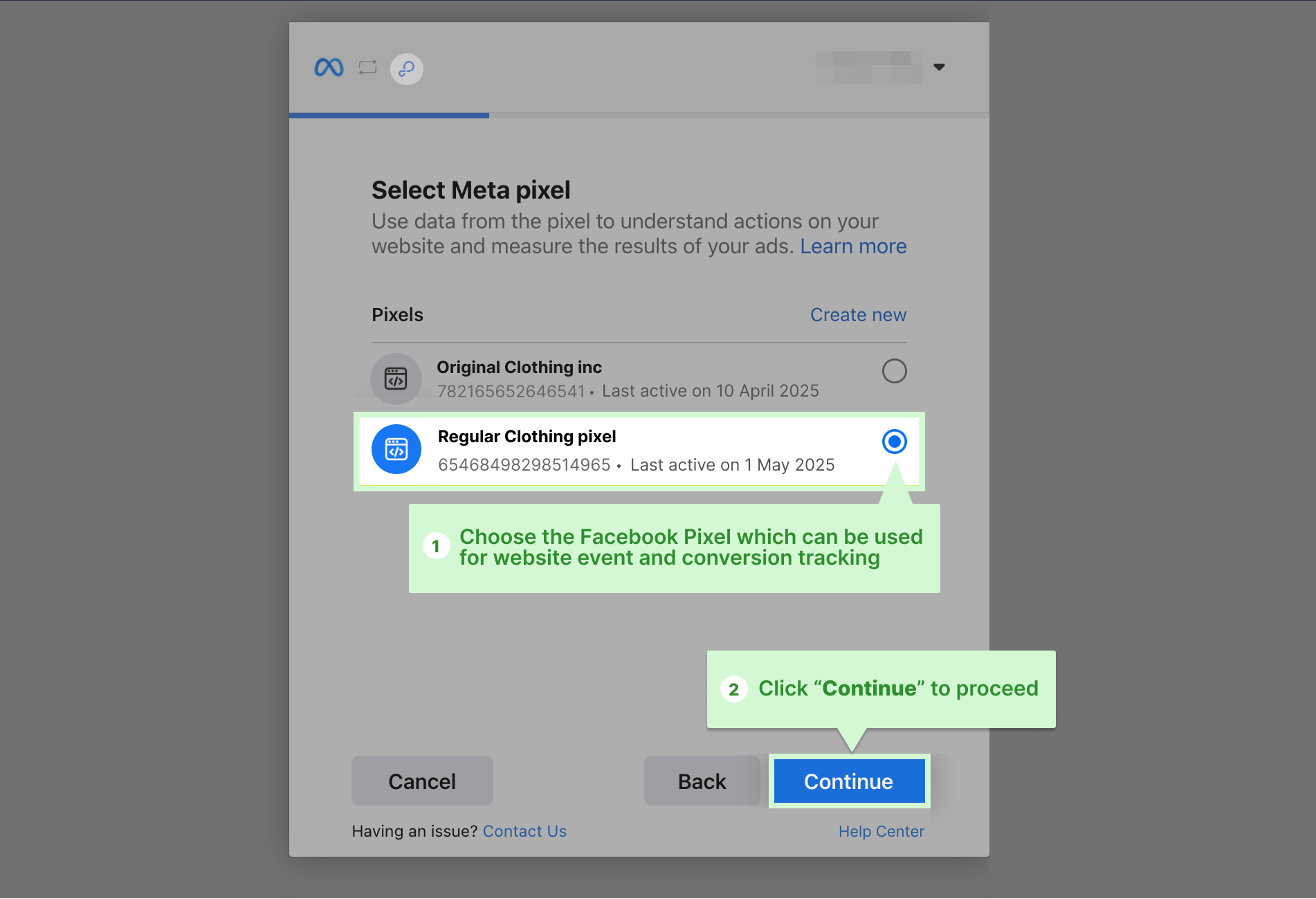
11. Select Meta Pixel or create new, then click "Continue"
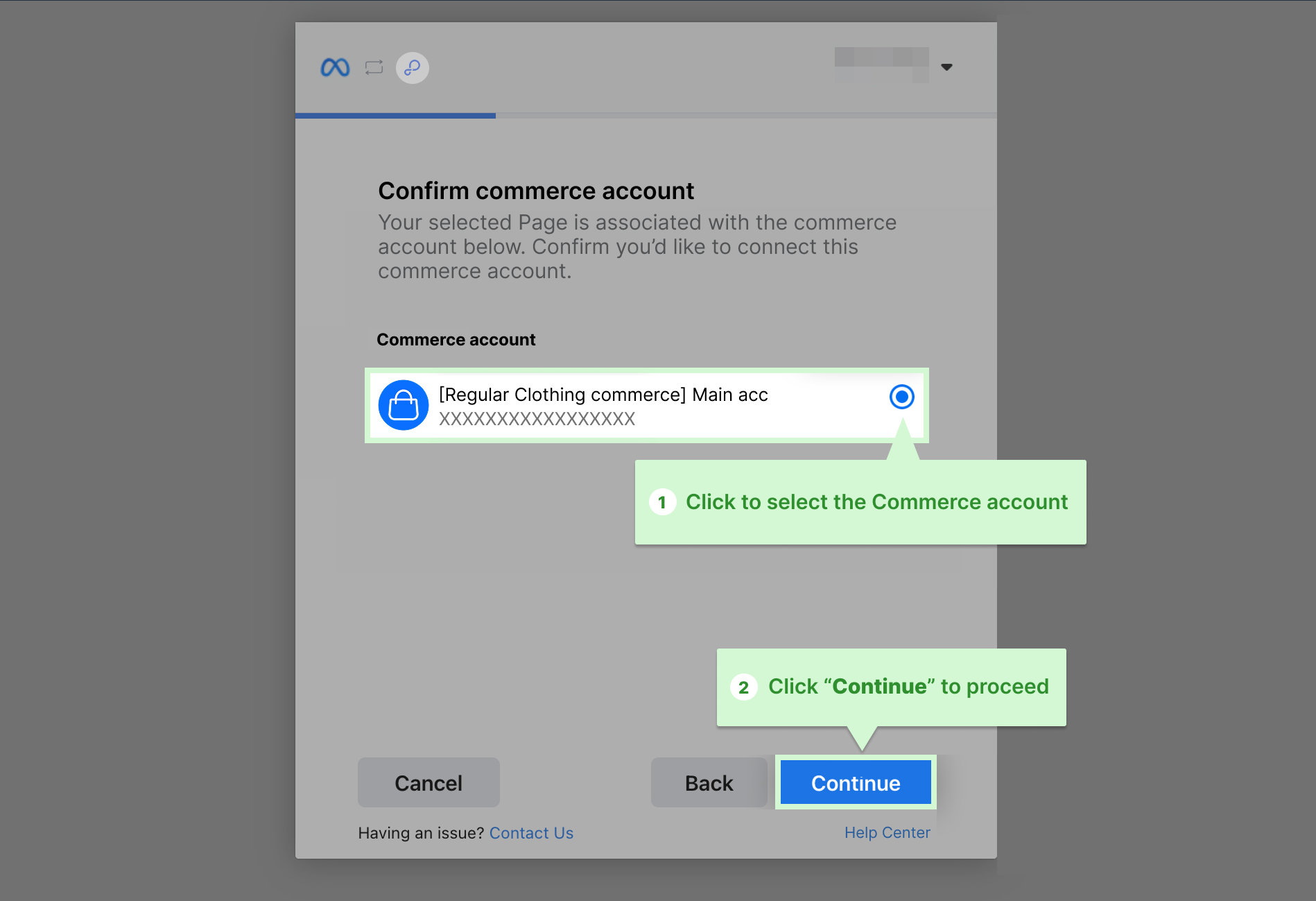
12. Connect your Commerce Account or create one, then click "Continue"
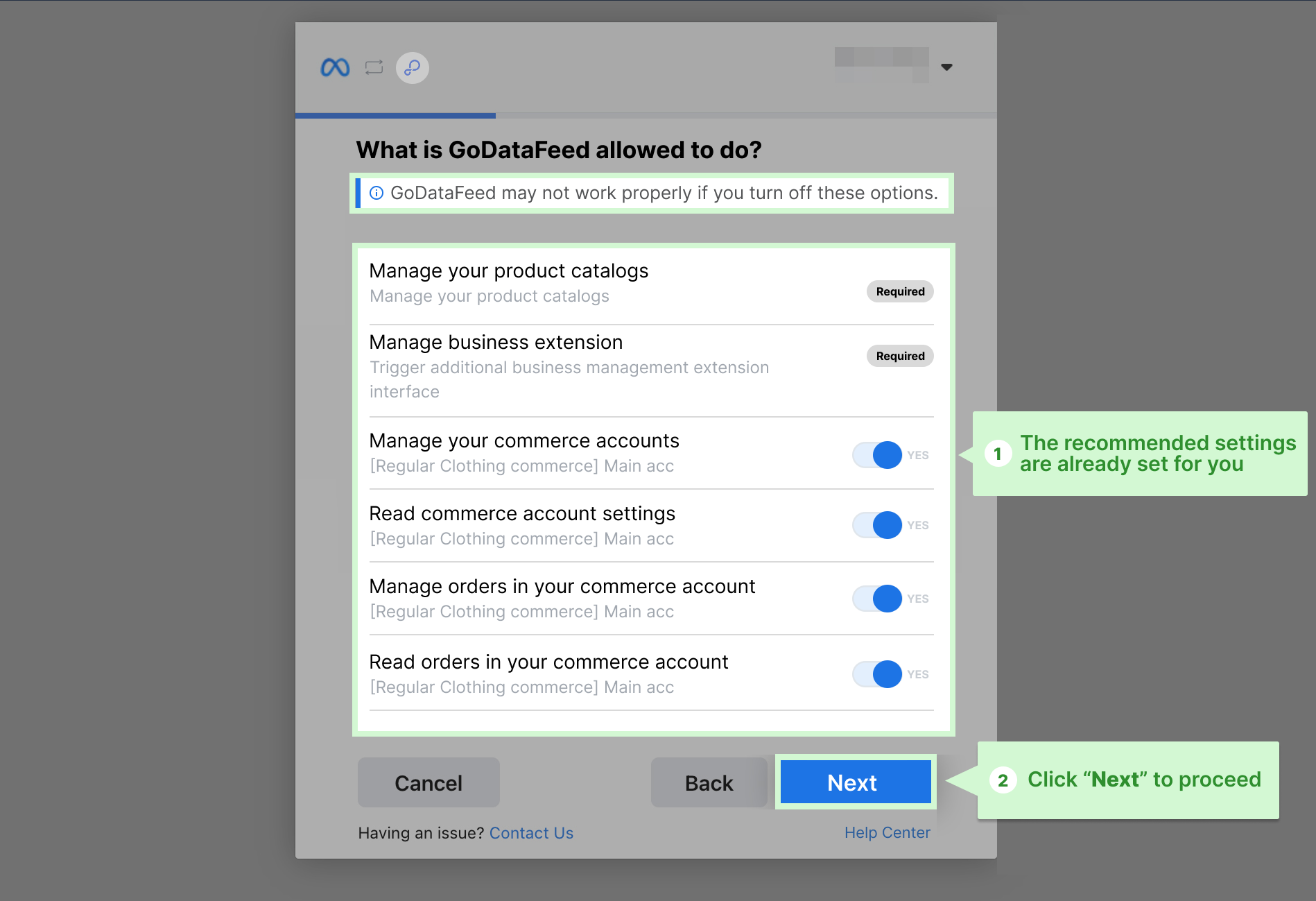
13. Confirm permissions and click "Next"
14. Click "Done" to complete
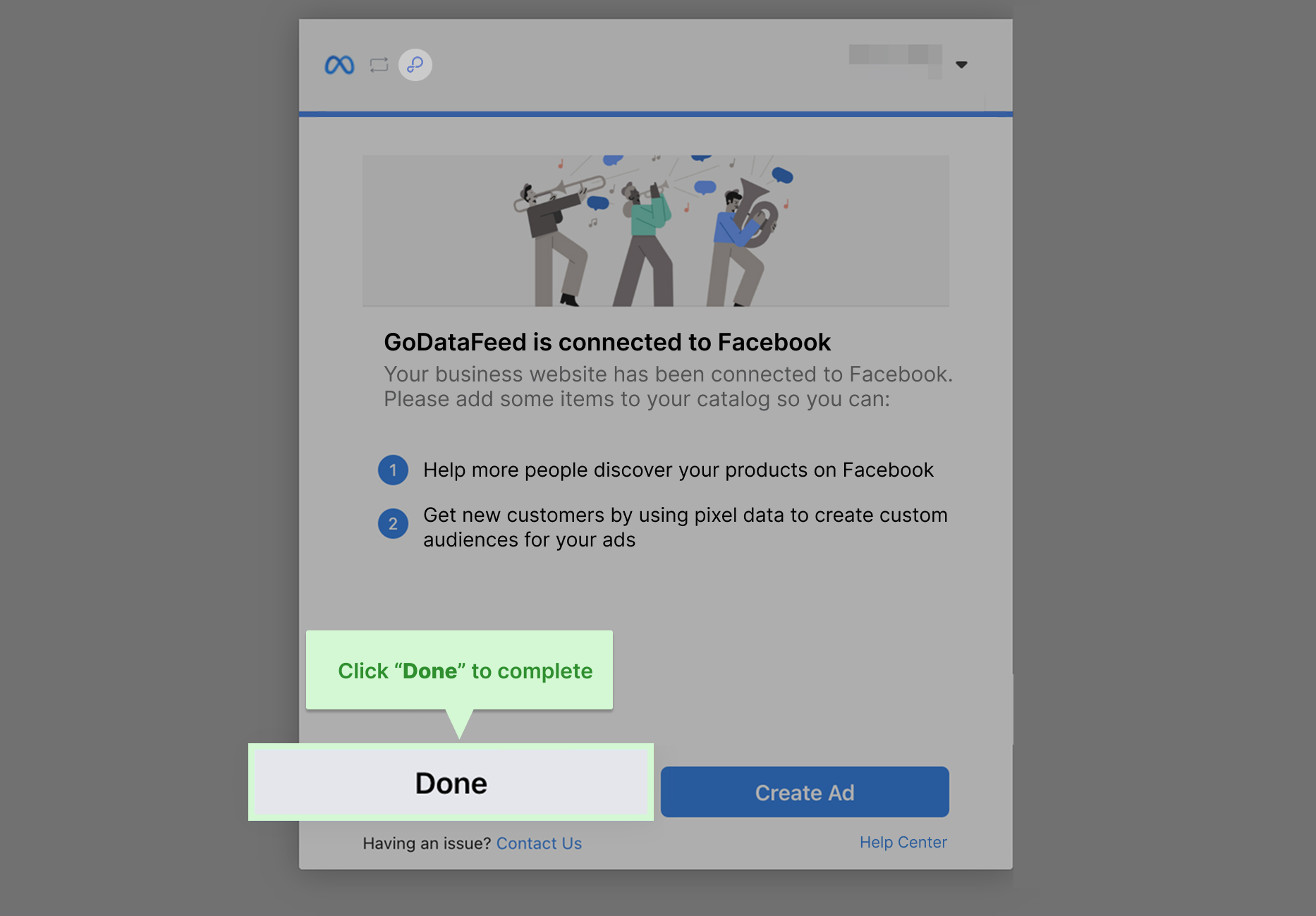
15. You should now see "Connection Successful" in the MBE Dashboard
How to connect the MBE in the Orders page
Follow these steps to connect MBE within your Orders page in GoDataFeed:
1. Click "Activate Order Sources" if setting up Order Sync for the first time. Otherwise, go to "Marketplace Sources" in the left menu > click “+” > Select "Meta"
2. Click "Meta", then click the blue "Connect" button
3. Walk through the prompts to connect. If needed, you can refer back to the feed connection steps above (Steps 2–13).
4. Once completed, you’ll be taken back to Orders, and the access token and order external business ID will display.
Developer references for the Meta Business Extension
Authentication
Business Login
Business Login allows business owners to connect their Facebook or Instagram profiles using a connect button on GoDataFeed. Permissions are requested for Catalog, Page, and Orders.
Note: Do not disable any permissions to ensure proper functionality.
Business Login is triggered after clicking the "Connect Meta MBE" button.
Currently supported scopes:
- Catalog_management [required]
- Manage_business_extension [required]
- Commerce_manage_accounts
- Commerce_account_read_settings
- Commerce_account_manage_orders
- Commerce_account_read_orders
Setup MBE installation URL configurations
The Business Login URL requires query parameters like: client_id, display, redirect_uri, response_type, scope, extras, setup, business_config.
The setup parameter includes externalBusinessId and storeDomain. More info is available here.
Exchange Access Token
After the MBE flow, a code is returned and exchanged for the access token.
Webhook
GoDataFeed receives webhook updates from Meta for installs, uninstalls, and changes. These updates are parsed and stored accordingly.
GET Method – Verification Requests
When updating the endpoint URL, Facebook sends a GET request for token validation and expects a verification response.
POST Method – Event Notifications
INSTALL Event: Saves asset IDs.
UNINSTALL Event: Disconnects integration and calls the uninstall API.
CHANGE Event: Updates granted features and stores new data.
Subscribed Webhook Events
- USER Object
- PERMISSION Object
- COMMERCE ACCOUNT Object
Still unable to connect?
Please review the following suggested troubleshooting steps:
- Review our Facebook Shops Checklist to confirm required accounts are set up: Facebook Business Manager, business Page, Instagram account, Ad account, Pixel, and Commerce account.
- If you're having issues with Instagram, try skipping this step initially and add it later via Facebook. Instructions: Connecting your Facebook catalog to Instagram
- If issues persist, contact our support team. Note: GoDataFeed can only read what Facebook sends after connection. Check your Meta accounts directly for errors or blocks.
Contact our support team for additional help. Include affected SKUs or screenshots.
Open a support ticket
Related Help Articles:
- 📌 Facebook: Checklist - Getting started with Facebook Shops
- 📌 All-in-one Feed Setup Overview Guide
- 📌 Request a feed setup by GoDataFeed
Related to
Comments
0 comments
Please sign in to leave a comment.